Your webcam is the worst camera you own.

The good one is already in your pocket. Phone as Webcam puts your iPhone into Zoom, Teams, OBS and anything else on Windows, over a cable or Wi-Fi, at up to 4K, with no watermark and nothing to buy.

The Windows app
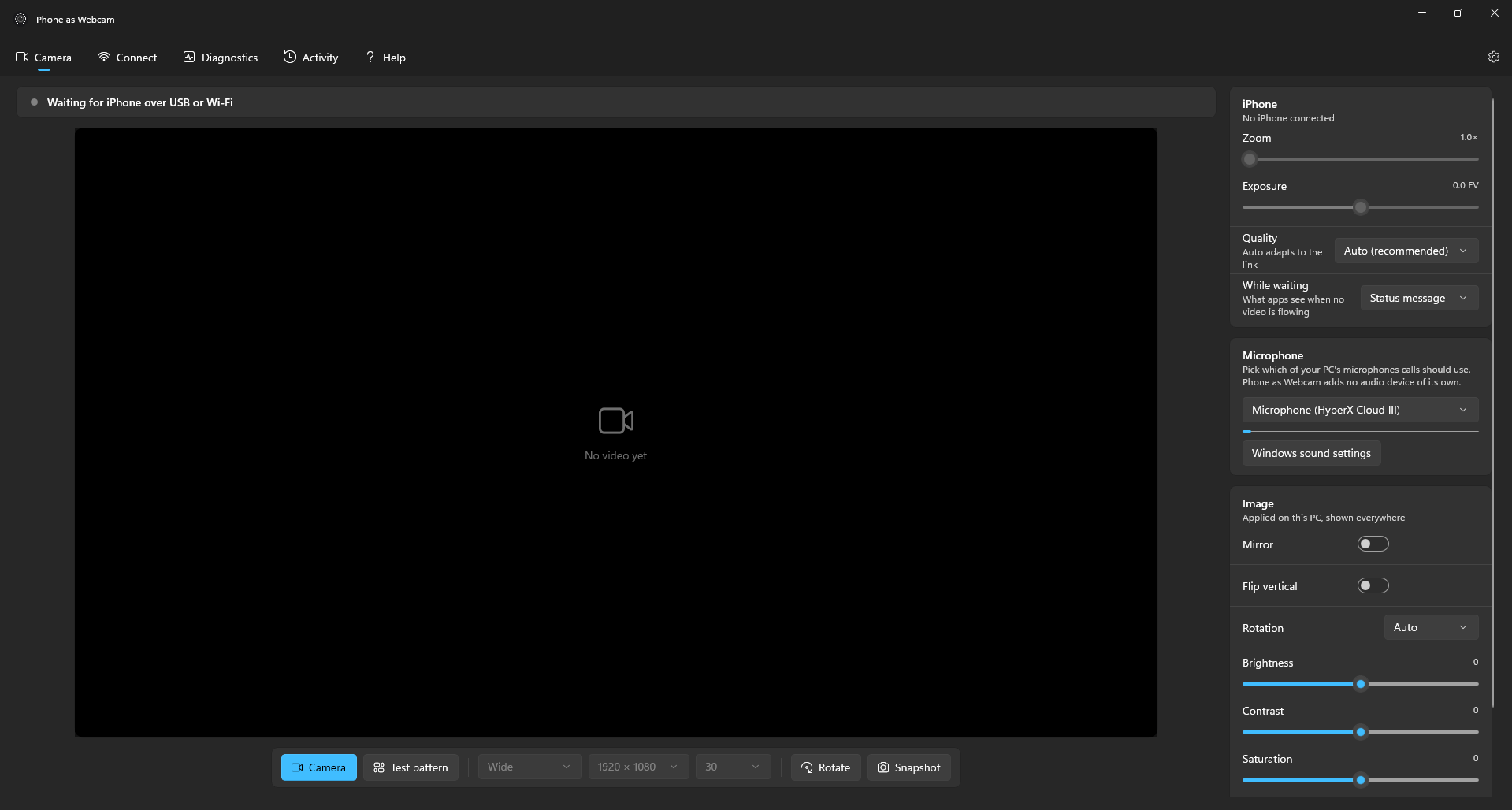
The Windows app showing a live iPhone camera preview

A few of the apps it shows up in


Zoom
OBS Studio
Microsoft Teams
Google Meet
Discord
Chrome
Streamlabs

These are the popular ones. It shows up in anything on Windows that takes a webcam.

01 Cost
$0

Not a free tier. The whole thing.

No watermark, no ads, no account. Here is everything, next to what the paid apps charge for it.

Scroll the table sideways

On the free tier
Phone as Webcam
This one
Camo
Reincubate
iVCam
e2eSoft
DroidCam
Dev47Apps
Iriun
Iriun Oy
Cost to unlock everything
Nothing
$49.99/yr, or $99.99 once
$25.95 once
About $15 once
$6.99 once
Video without a watermark
Always
Always
Paid only
Paid above 480p
Paid only
An app with no ads
No ads
No ads
Ads
Ads
No ads
1080p
Included
Free tops out at 720p
Free drops to 640 x 480
Paid only
Included
4K, where the phone can do it
Included
Paid only
Paid only
Paid, via OBS only
Included
60 fps
Included
Paid only
Paid only
Paid only
Not offered
Ultra wide and telephoto lenses
All of them
Paid only
Not offered
Paid only
Not offered
Manual exposure and zoom
Included
Paid only
Paid only
Paid only
Paid only
Source code you can read
Public
Closed
Closed
Closed
Closed
Microphone from the phone The row where they beat us
Video only
Yes
Yes
Yes
Yes
Figures are US pricing and free tier limits as published by each vendor in July 2026, which can change at any time. DroidCam does not publish a US figure, so its price is what buyers report. EpocCam is left out because Elgato has stopped selling and updating it. Apple's Continuity Camera is free and very good, and it only works with a Mac.
02 The camera

The best camera you own, finally on your PC.

Everything is controlled from the Windows app, so the phone just sits on its mount and does what it is best at.

4K60
Top format
H.264
Hardware encoded
2
Camera stacks

Every lens, live

Wide, ultra wide, telephoto and front, read off your phone so you only see what it really has. Switch mid call without dropping out.

Cable or Wi-Fi

A cable connects by itself. Wi-Fi pairs with one QR scan, stays on your network, and is encrypted end to end.

Directed from the desk

Lens, resolution, frame rate, zoom and exposure reach the camera itself. Mirror, flip, rotation, brightness, contrast and saturation happen on the PC.

OBS and Zoom at once

Windows has two camera systems and this speaks both, so it shows up everywhere, and more than one app can use it at the same time.

Comes back on its own

Lock the phone, take a call, pull the cable. When the phone returns, the camera reconnects with nothing to press. Portrait or landscape, the picture follows.

Works with the internet off

No sign in, no licence check, no server anywhere. If something is wrong, Diagnostics says which thing, in plain words, and fixes most of them with one button.

03 Setup

On a call in three minutes.

You do this once. No drivers to hunt down, no IP addresses, no command line, no settings file.

1

Install both halves

The Windows installer sets up the virtual camera and asks for admin once while it does. The phone app comes from the App Store.

2

Plug in, or scan once

Over a cable, open the app on the phone, connect, and tap Trust if iOS asks; the PC finds it by itself. Over Wi-Fi, point the phone at the QR code the Windows app shows. One scan, and the two know each other from then on.

3

Pick it in your app

Choose Phone as Webcam from the camera menu in Zoom, Teams, Meet, Discord or OBS. Apps that were open during the install need a restart to see any new camera.

What you need

An iPhone or iPad on iOS 18 or later · a PC on Windows 11 · a cable that carries data, or the same Wi-Fi

Plenty of cheap cables only carry power; if the phone charges but nothing shows up, swap the cable first. If the camera does not turn up anywhere, open Diagnostics in the Windows app: it names the cause in plain words and fixes most of them with one button.

04 Questions

Asked before installing.

If yours is not here, ask on GitHub and it will be. Every question gets read.

There is not one, and the reason is boring rather than noble. A paid app has costs to cover: servers, staff, an ad network. This is a phone talking to a PC in the same room, with one developer maintaining it. Nothing is held back and nothing about you is measured.
It stays free. The licence is Apache-2.0 and the source for both halves is public, so even if development stopped tomorrow anyone could keep building it. There is no account, no key to expire, and no tier waiting to be switched on later.
Anything on iOS 18 or later. The lens list and the top resolution are read off the device itself, so a recent phone offers more choices and an older one still does the job.
Android already has this built in: on Android 14 and later the phone can act as a USB webcam with no software at all, and Windows 11 reaches Android phones wirelessly through Phone Link. Neither works with an iPhone, and Apple's Continuity Camera only talks to a Mac. That gap is the reason this exists.
Windows 11 only. The virtual camera has to speak two different Windows camera systems, and they behave differently enough on 10 that one person cannot test it honestly. On a Mac you already have Continuity Camera, which does this for free and does it well.
Cable, if you have one to hand: less delay, the phone charges through a long call, and a busy network cannot affect it. Wi-Fi holds up well and is there for when the cable is not; it is just more sensitive to how crowded your network is.
1080p suits most calls, since Zoom and Teams compress hard at their end anyway. The trick worth knowing: set the camera to 4K even for a 1080p call. The meeting app asks Windows for 1080p, the larger picture gets scaled down on the PC, and the result is visibly cleaner than shooting 1080p directly. Use full 4K when recording or in OBS.
No, and it is not planned. Putting a microphone into Windows needs a signed audio driver, which costs several hundred dollars a year to keep valid, and that money would have to come from somewhere. Keep using the headset or microphone you already have; the app has a picker for it.
It goes from your phone to your PC and stops there. Nothing is recorded, nothing is uploaded, and there is no analytics of any kind in either app. There is no server in this project to send anything to, even by accident.
The source for both halves is public, so you can read it or build it yourself rather than trust a download. The installer is not code signed yet, because certificates cost real money, so SmartScreen may warn you once: click More info, then Run anyway. Free open source signing has been applied for and will remove that warning. Admin is asked for once, to register the camera with Windows.
Quit that app properly and open it again, since most read the camera list only at startup, and a browser needs every window closed. If it still does not appear, open Diagnostics in the Windows app: it checks permissions, registration and the connection, names the one that is wrong, and fixes most of them with a button.
Yes. Record in OBS while you sit in a Teams call and both get the same picture. Most webcam software allows one app at a time, which is why this one does not.

Take the better camera out of your pocket.

Install it, plug the phone in, pick it in your meeting. If you would rather read the code before you run it, that is public too.